
Unified Calling directory is divided into three types, including colleagues in the company, native contacts in your phone, and external contacts stored on the server. This topic provides an overview of the three types of directory.
Extensions
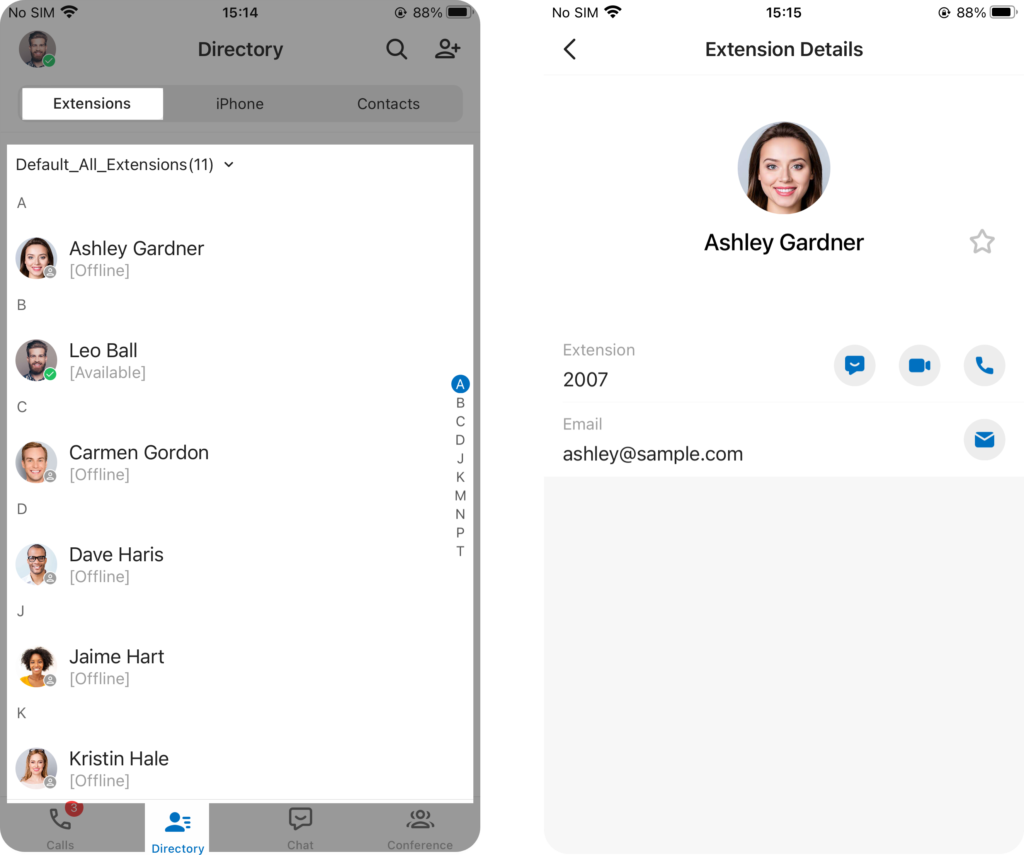
The Extensions directory contains the extensions’ information that are synchronized from the server, namely your colleagues’ information.
You can have an overview of your colleagues and seamlessly collaborate with them by implementing the followings:
- Intuitively see whether your colleagues are available to reach via the extension presence
- Add colleagues whom you communicate with most often to a favourite list
- Make a call to your colleague
- Start a 1:1 chat with your colleague
Phone
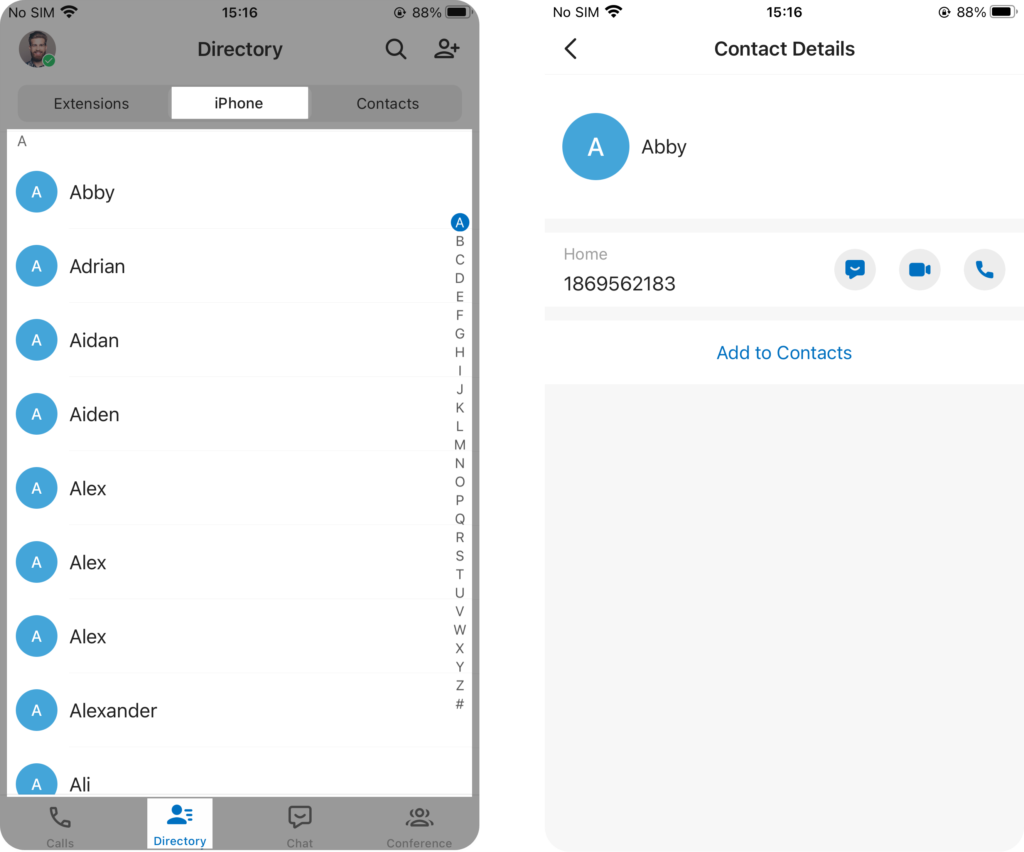
If you grant the Unified Calling App permission to access your phone contacts, the Phone directory will display the native contacts that are synchronized from your mobile phone.
You can easily add a phone contact to Unified Calling Contacts directory as needed, and directly initiate a call to the contact via either Unified Calling or your phone.
Note: The phone contacts only display in the Unified Calling App, all data is stored in your phone locally and will NOT be uploaded anywhere.
Contacts
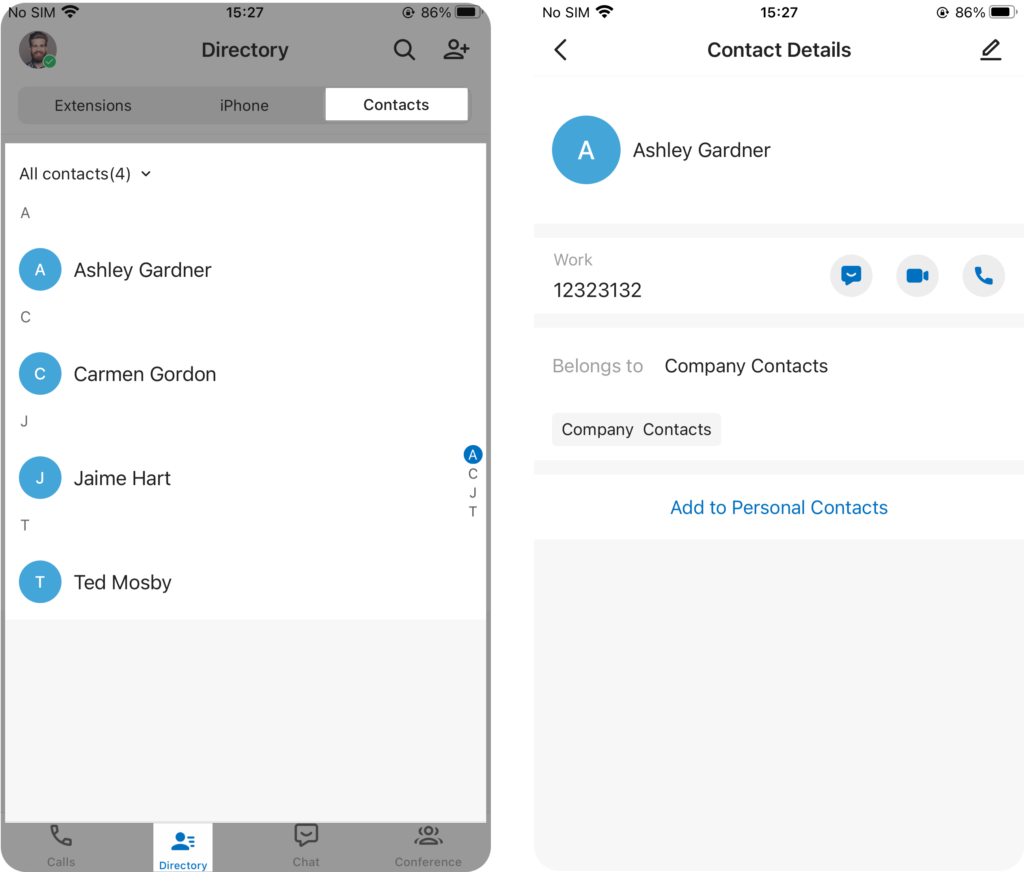
The Contacts directory provides an overview of your external contacts that are stored on the server. The directory is subdivided into two types, namely personally managed contacts (stored in Personal Contacts) and shared contacts (stored in Company Contacts).
Personal Contacts
This directory is only visible to yourself. You can store your own external contacts (such as direct customers) in the directory.
For more information, see the following topics:
Company Contacts
This directory is shared among authorized colleagues. You can store external contacts (such as company’s customers, resellers, and partners) in the directory, so as to share contact information with your team members and thus enhancing team collaboration.
Note: If you fail to see Company Contacts directory, it indicates that you don’t have the viewing permission. Contact the system administrator to grant you permission if necessary.
For more information, see the following topics:
Favourite Contacts
For contacts (both Personal Contacts and Company Contacts) that you are frequently or commonly communicated with, you can mark them as favourites. The marked contacts will be displayed in the Favourite Contacts list for quick location and retrieval.
For more information, see Mark or Remove Favorite Contacts.