
This topic describes how to add a personal contact. The personal contacts you add will be synchronized across your Unified Calling Clients and are only visible to yourself. Colleagues DO NOT see your personal contacts.
Supported methods
Unified Calling supports adding a personal contact via any of the following methods:
- Add a personal contact on ‘Contact’ page
- Add a personal contact from company contacts
- Add a personal contact from phone contacts
- Add a personal contact from Unified Calling call history
Add a personal contact on ‘Contact’ page
If there is no record or information about a contact in Unified Calling, you can manually add a contact by entering their information & save the contact to your Personal Contacts directory.
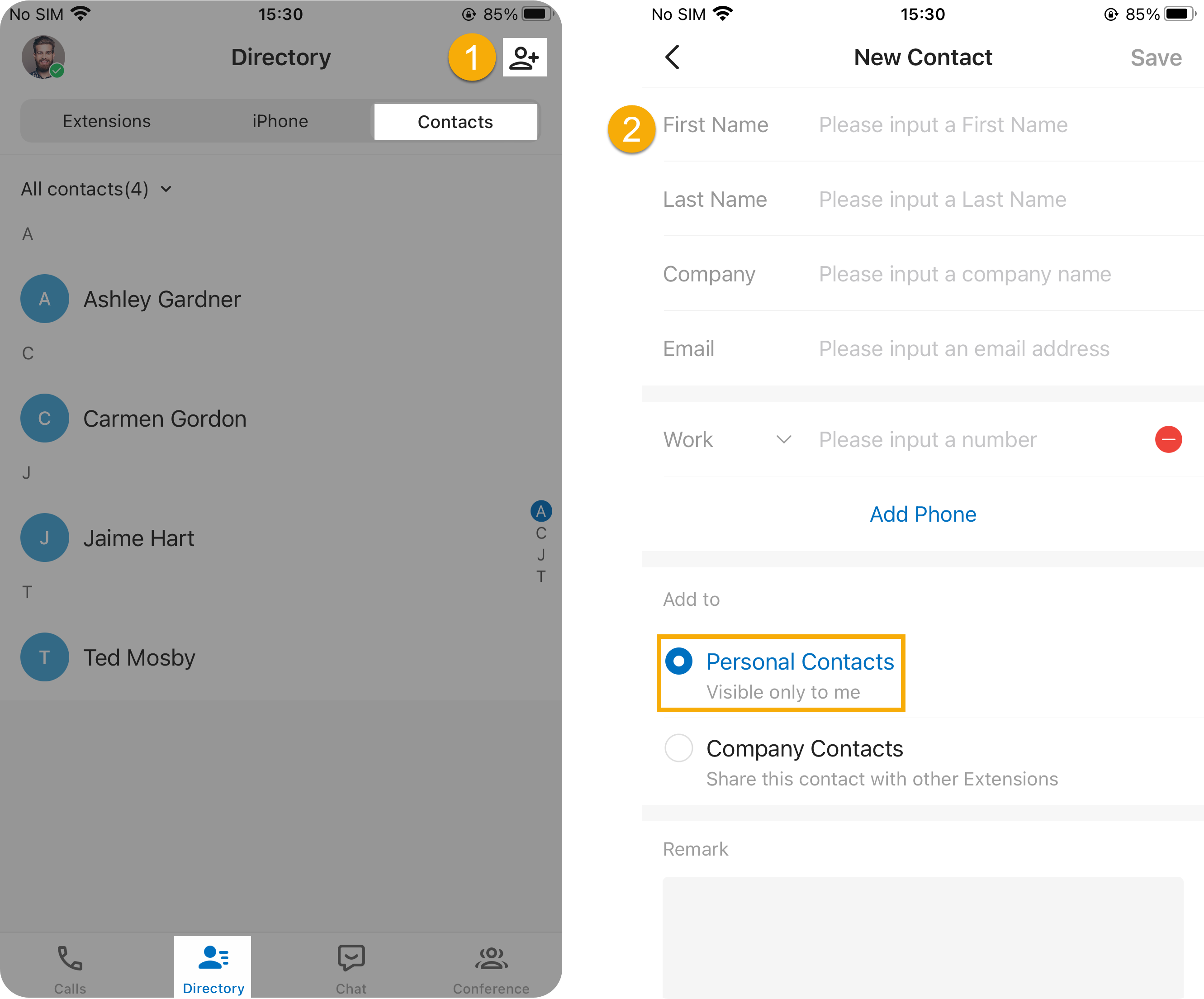
- In the Unified Calling App, go to Directory > Contacts, then tap
 at the top-right corner.
 - In the New Contact page, do as follows:
- Enter the contact information.
- In the Add to section, select Personal Contacts.
- Optional: In the Remark field, enter a short description about the contact.
- At the top-right corner, tap to save the information.
Add a personal contact from company contacts
If the system administrator has granted you permission to manage company contacts, you can directly add a company contact to your Personal Contacts directory.
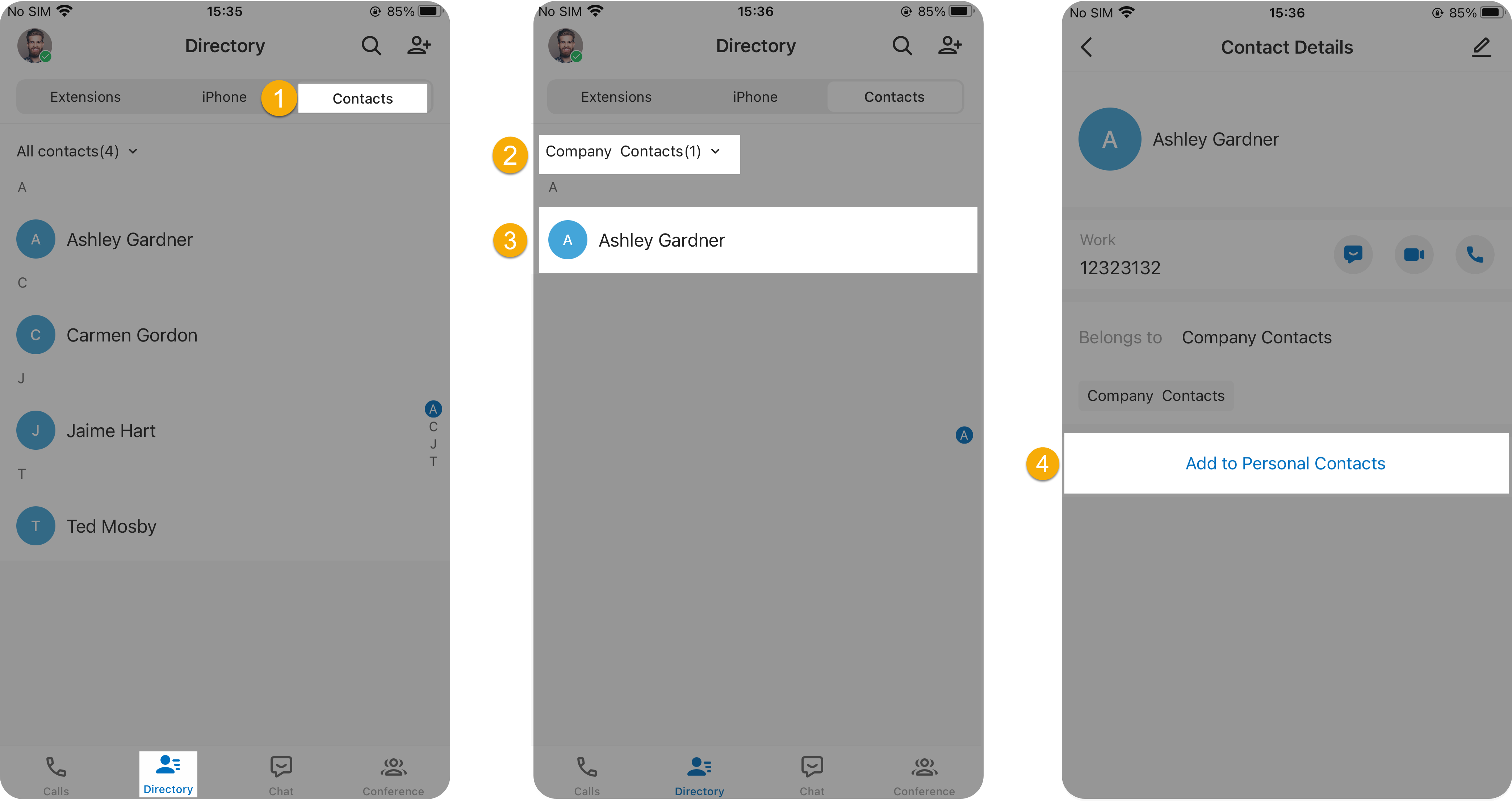
- In the Unified Calling App, go to Directory > Contacts.
- At the top-left corner, select Company Contacts or the phonebook where the company contact is stored.
- Tap the desired company contact.
- In the Contact Details page, tap Add to Personal Contacts.The page prompts “Added successfully”, which indicates that the company contact is added to your Personal Contacts directory.
Add a personal contact from phone contacts
If you have granted the Unified Calling App permission to access your native contacts on your phone, you can directly add a phone contact to your Personal Contacts directory.
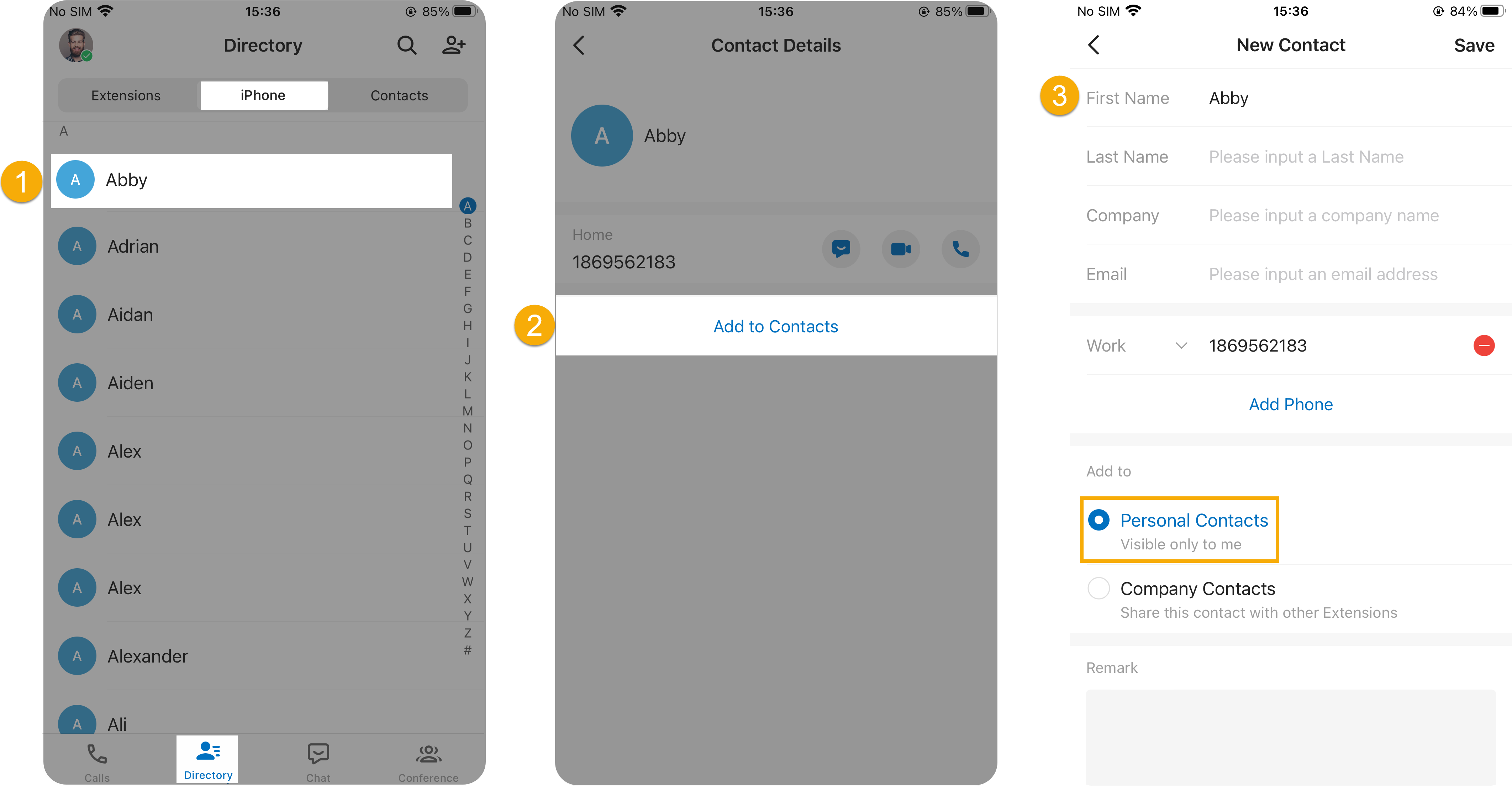
- In the Unified Calling App, go to Directory > Phone, then tap the desired contact.
- In the Contact Details page, tap Add to Contacts.
- In the New Contact page, do as follows:
- Edit the contact information as needed.
- In the Add to section, select Personal Contacts.
- Optional: In the Remark field, enter a short description about the contact.
- At the top-right corner, tap to save the information.
Add a personal contact from Unified Calling call history
You can directly add an unknown number from Unified Calling call history to your Personal Contacts directory.
- In the Unified Calling App, go to Calls > Call Logs, then tap
 beside the desired record.
 - In the Call History Details page, tap
 .
. - In the pop-up window, tap Add to Contacts, then decide how to add the contact.
- Note: If you select Add to Phone, the contact will be added to native contacts on your mobile phone.
- To add the contact as a new contact, do as follows:
- Tap New Contact.
- Enter the contact information.
- In the Add to section, select Personal Contacts.
- Optional: In the Remark field, enter a short description about the contact.
- At the top-right corner, tap to save the information.
- To add the contact to an existing contact, do as follows:
- Tap Add to Existing Contact.
- At the top-left corner of the Add to Contact page, select Personal Contacts.
- Tap the desired personal contact.
- In the Edit page, edit the contact’s information and remark as needed.
- At the top-right corner, tap to save the information.The contact’s information is updated.
- To add the contact as a new contact, do as follows:
- Note: If you select Add to Phone, the contact will be added to native contacts on your mobile phone.
Related information