
This topic describes how to manually switch current presence status to a new one, including fixed status and temporary status.
Switch presence status to a fixed status
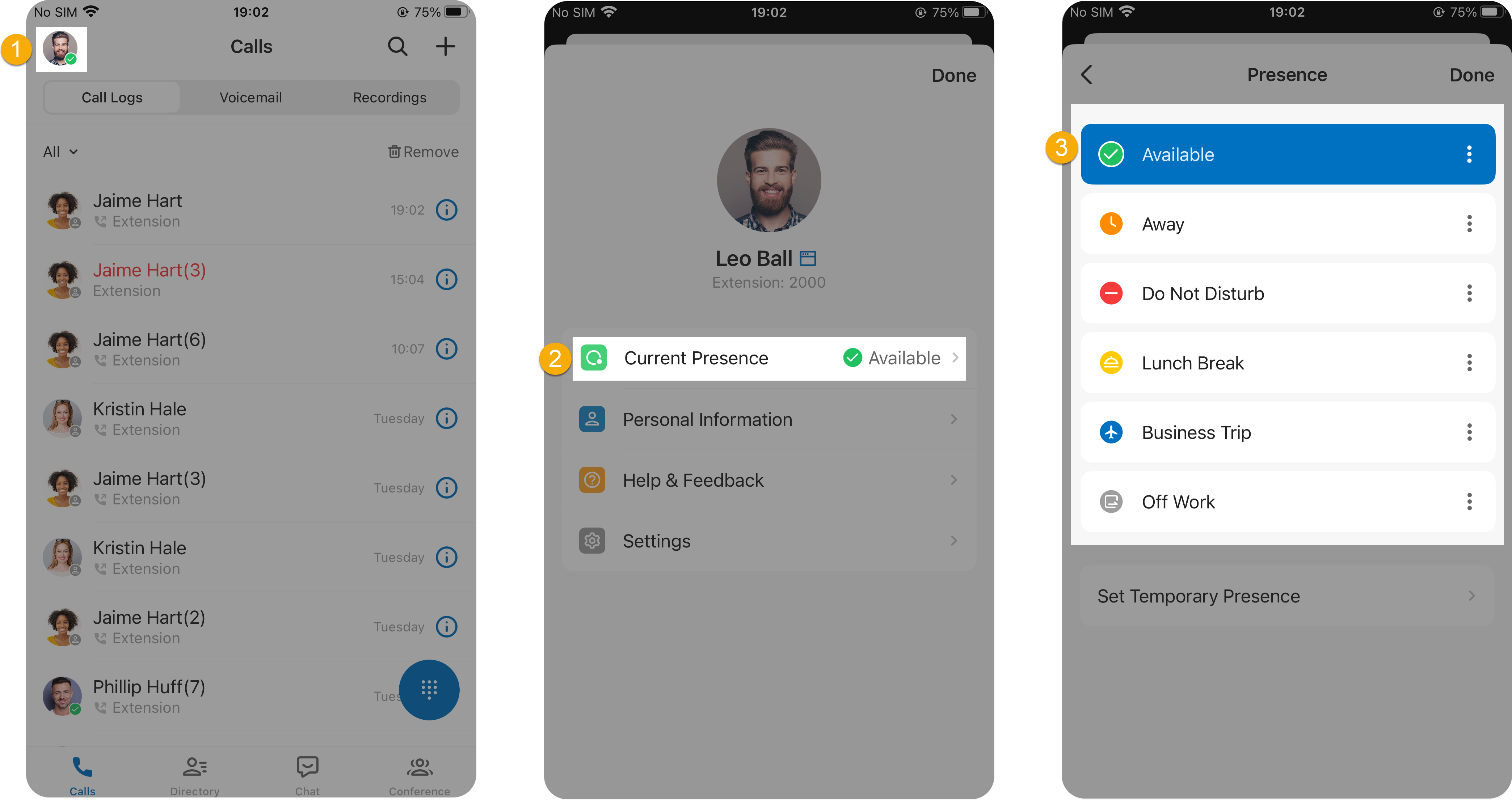
- At the top-left corner of the Unified Calling App, tap your account.
- Go to Current Presence.
- In the Presence list, select a presence option. The presence status and the relevant presence settings take effect.
Switch presence status temporarily
You plan to be away for a scheduled meeting, during which you are unavailable to answer calls, but you want calls to be forwarded to the previous destination when you are available. In case you forget to change your presence status, you can switch presence to a temporary status, and set how long the status will last.
- At the top-left corner of the Unified Calling App, tap your account.
- Go to Current Presence > Set Temporary Presence.
- In the Set Temporary Presence page, do as follows:
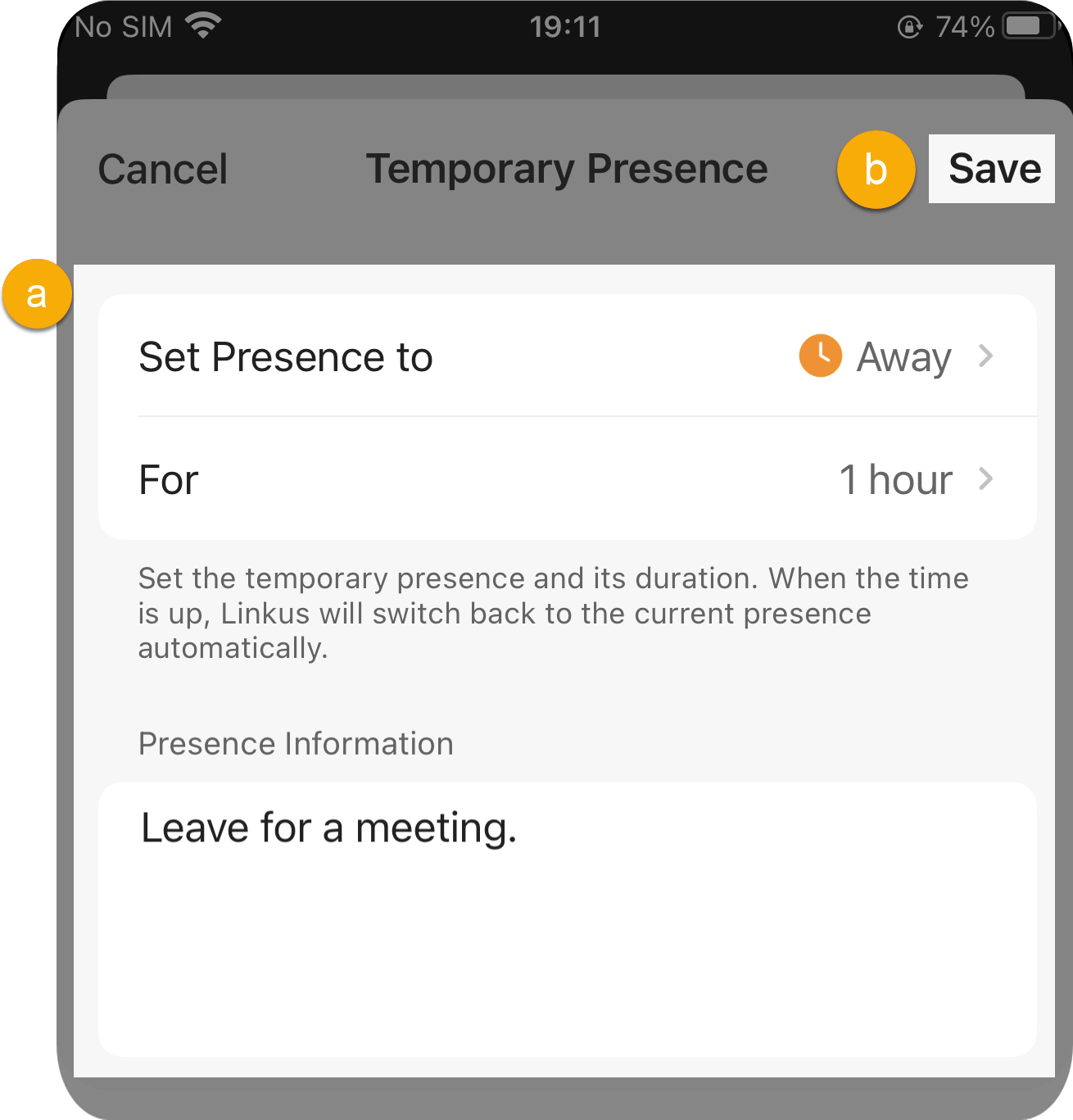
- Set a presence status and its duration.
- Set Presence to: Select a temporary presence status.
- For: Set the duration of the temporary presence status.
- Presence Information: Optional. Add a note for the temporary presence status.
- The information will be displayed in the extension details.
- Tap Save.
- The presence status and the relevant presence settings take effect.
- In the Presence list, the selected presence status displays when will the temporary status ends. When the time is up, presence status and relevant settings would be switched back to the previous one.
- The presence status and the relevant presence settings take effect.
- Set a presence status and its duration.