
Login & Logout
Why can’t I log in to the Unified Calling App on my phone?
First, make sure that the login username and password are correct.
If the login information is correct, contact system administrator to check the following settings on the server:
- The Unified Calling server settings are correct.
- Your Unified Calling client is enabled.
- If you fail to log in to Unified Calling in an external network, the system administrator should check the configuration of Remote Access Service or the mapping of the Unified Calling port.
If you still can not log in, you can report the problem on Unified Calling.
How to check if other Unified Calling Clients logged into my Unified Calling account?
At the top-left corner of the Unified Calling App, tap your account.
The other Unified Calling clients that you are logged into are displayed beside your name.

 : Your Unified Calling Web Client is logged in.
How to log out of other clients from Unified Calling App?
- At the top-left corner of the Unified Calling App, tap your account.
- The other Unified Calling clients that you are logged into are displayed beside your name.
- Log out of the desired Unified Calling client as follows:
- Tap the icon of the Unified Calling client.
- In the Logged In page, tap Log out of Unified Calling Web Client.
- In the pop-up window, tap OK.
Directory
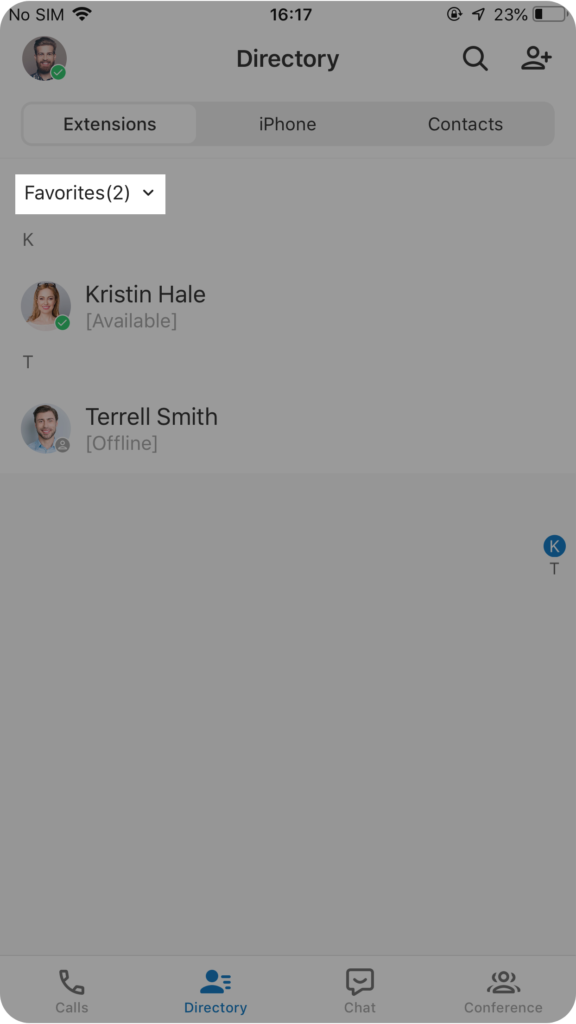
How to add an extension to my Favorites List in the Unified Calling App?
- In the Unified Calling App, go to Directory > Extensions.
- Tap the desired extension.
- On the extension details page, tap
 .The extension is added to your Favorites list. You can find the extensions which you communicate with most often in the list.
Calls
How to set Unified Calling as the default calling app?
**** This feature is supported on Android phone only. ****
- On your Android phone, open Settings.
- Go to Apps > Default Apps, set Phone app to Unified Calling.
- Note: The path may vary depending on your phone model.
How to make an outbound call using the Unified Calling App?
- In the Unified Calling App, go to Directory to find the desired contact.
- Press
 beside the preferred number – extension or mobile,
 - The call is made.
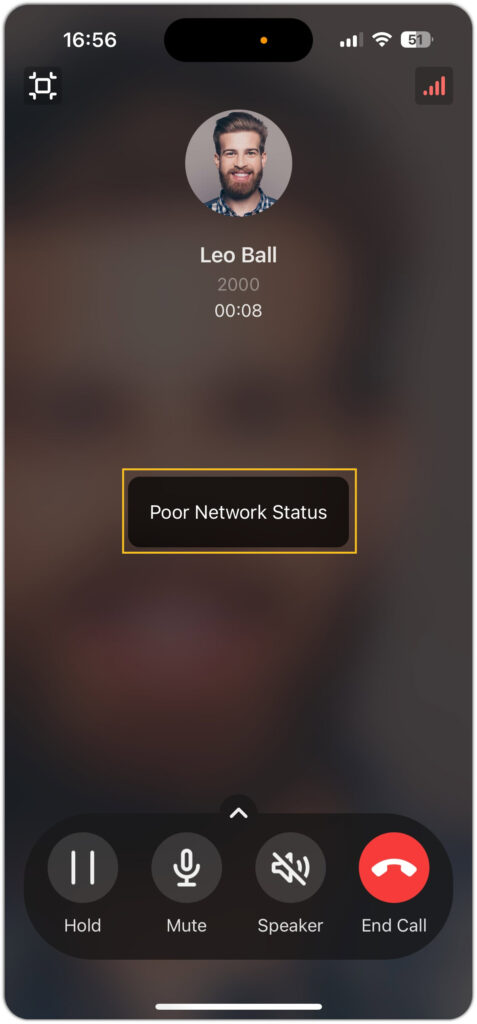
How will I be notified if there is network anomaly during a Unified Calling call?
By default, you will be notified via a pop-up message on the call screen, as shown below:
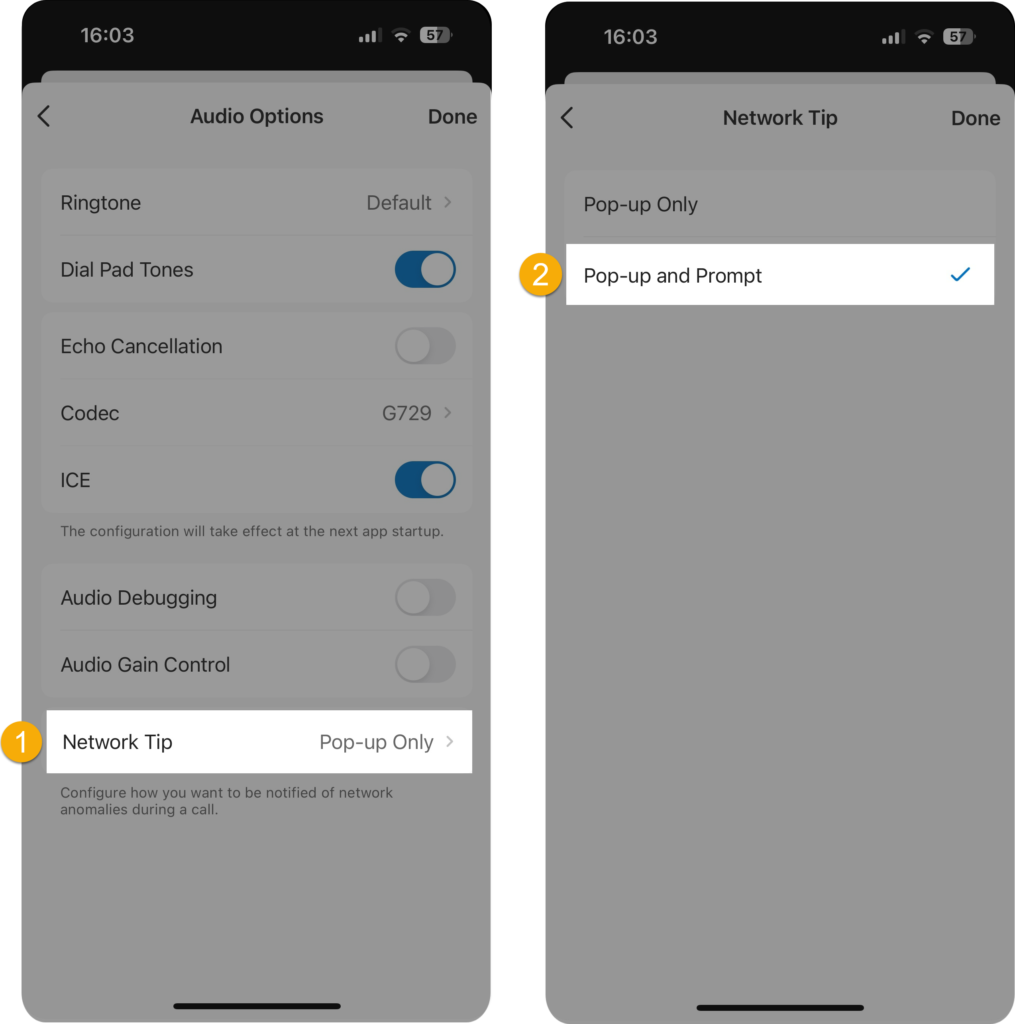
If you want to receive notifications via beep tone, you need to change the notification method as follows:
- Go to Account > Settings > Audio Options.
- Tap Network Tip and select Pop-up and Prompt.
Recording
Why is the Record button grayed out and doesn’t work?
Because you are not allowed to record a call. Contact the system administrator to grant you the permission if necessary.
Why is there no response from the Record button?
The issue may be caused by improper configuration of the recordings storage location. You can contact the system administrator to verify.
Network
Does the Unified Calling App work with both Wi-Fi & cellular networks?
Yes.
- When your phone is connected to the Wi-Fi network that is within your company’s Local Area Network (LAN), the Unified Calling local IP address will work.
- When your phone is connected to the Wi-Fi network that is out of your company’s Local Area Network (LAN) or connected to the cellular network, the Unified Calling public IP address will work.
Other questions
How do I clear the Unified Calling App cache?
- At the top-left corner of the Unified Calling App, tap your account.
- Go to Settings > Advanced.
- Clear Unified Calling App cache as follows:
- Tap Clear Cache.
- In the pop-up window, tap OK.
How to change the language of the Unified Calling App?
By default, the Unified Calling App follows the language of your mobile phone. To change the language of the Unified Calling App, change the language in your mobile phone settings.