
Unified Calling Login Overview
Unified Calling allows you to log in to Mobile Client using different methods, including logging in with your extension account by scanning QR code, copying the login link & entering login information, or directly logging in with a third-party account.
Extension account login
You can log in to Unifed Calling with your extension account using QR code, login link, or manually-entered login information.
Quick login
After you receive a Unified Calling welcome email, you can obtain a QR code and a login link from the email, via which you can quickly log in to Unified Calling Mobile Client. For more information, see the following topics:
- Log in to Unified Calling with Extension Account Using QR Code
- Prerequisites
- You have received the Unified Calling welcome email.
- Notes
- If you don’t receive the Unified Calling welcome email, contact the system administrator to resend one.
- The QR code is valid in 24 hours and can only be used once.
- Procedure
- At the top-right corner of the Unified Calling login page, tap
 .
. - Scan the QR code that is in the welcome email. Unified Calling will get the login information and log in automatically.
- At the top-right corner of the Unified Calling login page, tap
- Prerequisites
**** If it is the first time that you log in to Unified Calling with extension account, you will be asked to agree a privacy policy agreement and change the initial password. When finished, you need to log in to Unified Calling with the new password. ****
- Log in to Unified Calling with Extension Account Using Login Link
- Prerequisites
- You have received the Unified Calling welcome email.
- Notes
- If you don’t receive the Unified Calling welcome email, contact the system administrator to resend one.
- The login link is valid in 24 hours and can only be used once.
- Procedure
- On your mobile phone, copy the login link from the Unified Calling welcome email.
- Open Unified Calling Mobile Client. Unified Calling automatically detects the account information and asks if you want to log in with the account.
- In the pop-up dialog box, tap Yes.
- Prerequisites
**** If it is the first time that you log in to Unified Calling with extension account, you will be asked to agree a privacy policy agreement and change the initial password. When finished, you need to log in to Unified Calling with the new password. ****
Manual login
You need to contact the system administrator to obtain your extension account username and password, as well as the network information of the Unified Calling Server, then manually enter the information to log in.
- Log in to Unified Calling with Extension Account Using Manually-Entered Credentials.
- Prerequisites
- Contact system administrator to obtain your extension account username and password, as well as the network information of Unified Calling Server.
- Note
- The network information might be Serial Number (SN), domain name, or IP addresses and ports, depending on the Unified Calling Server’s network configuration.
- Procedure
- Log in using SN or domain name
- Username – enter your extension number or email address.
- Password – enter the password associated with the user name.
- SN/Domain – enter the SN or domain name
- If the SN/Domain field is non-editable, tap Custom Settings (Enabled), and unselect the checkbox of Enable Custom Settings.
- Tap Login.
- Log in using IP addresses and ports
- Username – enter your extension number or email address.
- Password – enter the password associated with the user name.
- Tap Custom Settings.
- Select the checkbox of Enable Custom Settings.
- Enter the IP addresses and ports.
- When you use Unified Calling Mobile Client within a company’s Local Area Network (LAN), Unified Calling communicates through the local hostname/IP. Otherwise, Unified Calling communicates through the external hostname/IP.
- Tap OK.
- Tap Login.
- Log in using SN or domain name
- Prerequisites
**** If you have set up 2FA, you need to enter an authentication code ****
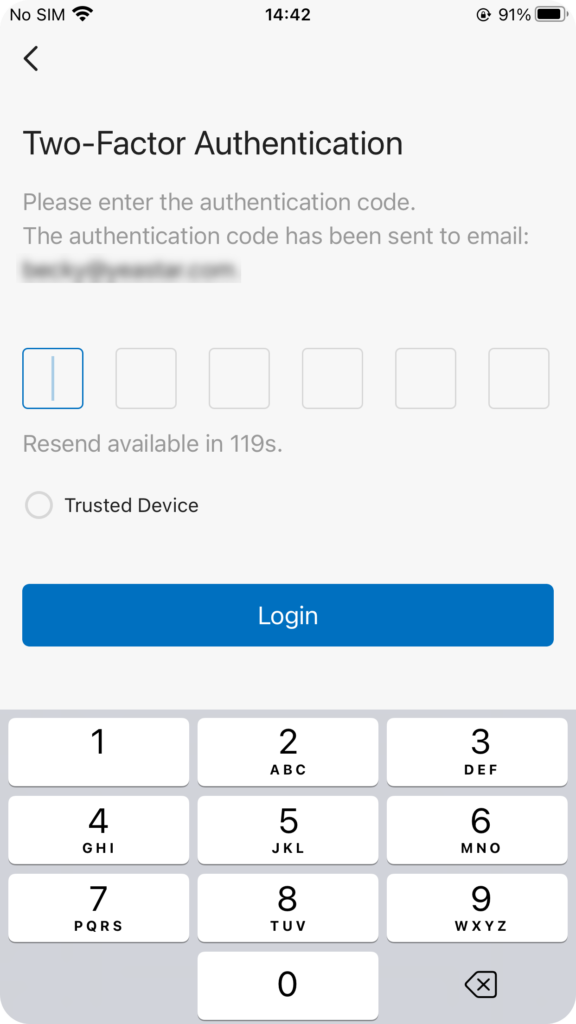
- Enter the authentication code provided by an authenticator application or email.
- Optional: Select the checkbox of Trusted Device.
- For the device from which you log in most frequently, you can select the option to add it as a trusted device. In this way, you don’t have to re-enter an authentication code with this device for the next 180 days.
- Click LOG IN.
- If it is the first time that you log in to Unified Calling with extension account, you will be asked to agree to a Privacy Policy and change the initial password. When finished, you need to log in to Unified Calling with the new password.
- If it is the first time that you log in to Unified Calling with extension account, you will be asked to agree to a Privacy Policy and change the initial password. When finished, you need to log in to Unified Calling with the new password.
Third-party account login
If the system administrator has integrated the server with a third-party system, you can directly log in to Unified Calling Mobile Client with the third-party account.
For more information, see the following topics:
- Log in to Unified Calling with Active Directory Domain Account
- Requirements
- System administrator has integrated the server with Active Directory, and enabled Single Sign-on (SSO) feature.
- Your Unified Calling version meets the following requirement:
- Unified Calling iOS App : Version 5.5.11 or later
- Unified Calling Android App: Version 5.5.12 or later
- Prerequisites
- Contact system administrator to obtain the network information of the Unified Calling Server.
- The network information might be a domain name, or IP addresses and ports, depending on the Linkus Server’s network configuration.
- Contact system administrator to obtain the network information of the Unified Calling Server.
- Procedure
- Log in using domain name
- Username – enter the user name of your AD domain account (Format:
username@domainname). - Password – enter the password associated with the user name.
- SN/Domain – enter the domain name.
- If the SN/Domain field is non-editable, tap Custom Settings (Enabled), and unselect the checkbox of Enable Custom Settings.
- Tap Login.
- Username – enter the user name of your AD domain account (Format:
- Log in using IP addresses and ports
- Username – enter the user name of your AD domain account (Format:
username@domainname). - Password – enter the password associated with the user name.
- Tap Custom Settings.
- Select the checkbox of Enable Custom Settings.
- Enter the IP addresses and ports.
- When you use the Unified Calling App within a company’s Local Area Network (LAN), Unified Calling communicates through the local hostname/IP. Otherwise, Unified Calling communicates through the external hostname/IP.
- Tap OK.
- Tap Login.
- Username – enter the user name of your AD domain account (Format:
- Log in using domain name
- Requirements